
Help Center / Training
Changing your password
Update your password from your account, or reset it if you forgot it.
You can change your Entrivo password any time. One password change covers every connected app.
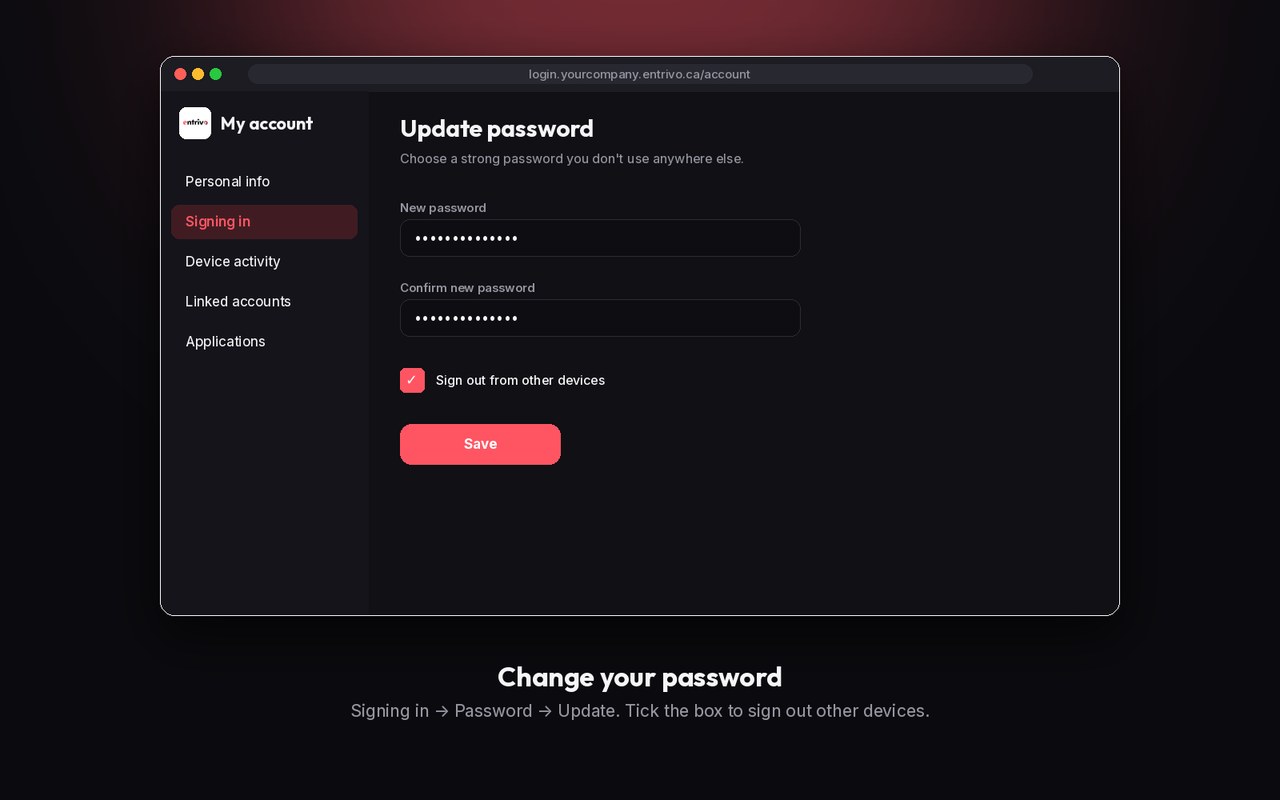
1. Change your password
- Sign in and open Signing in in your account.
- Next to Password, click Update.
- Enter your new password twice.
- Optional: tick Sign out from other devices.
- Click Save.
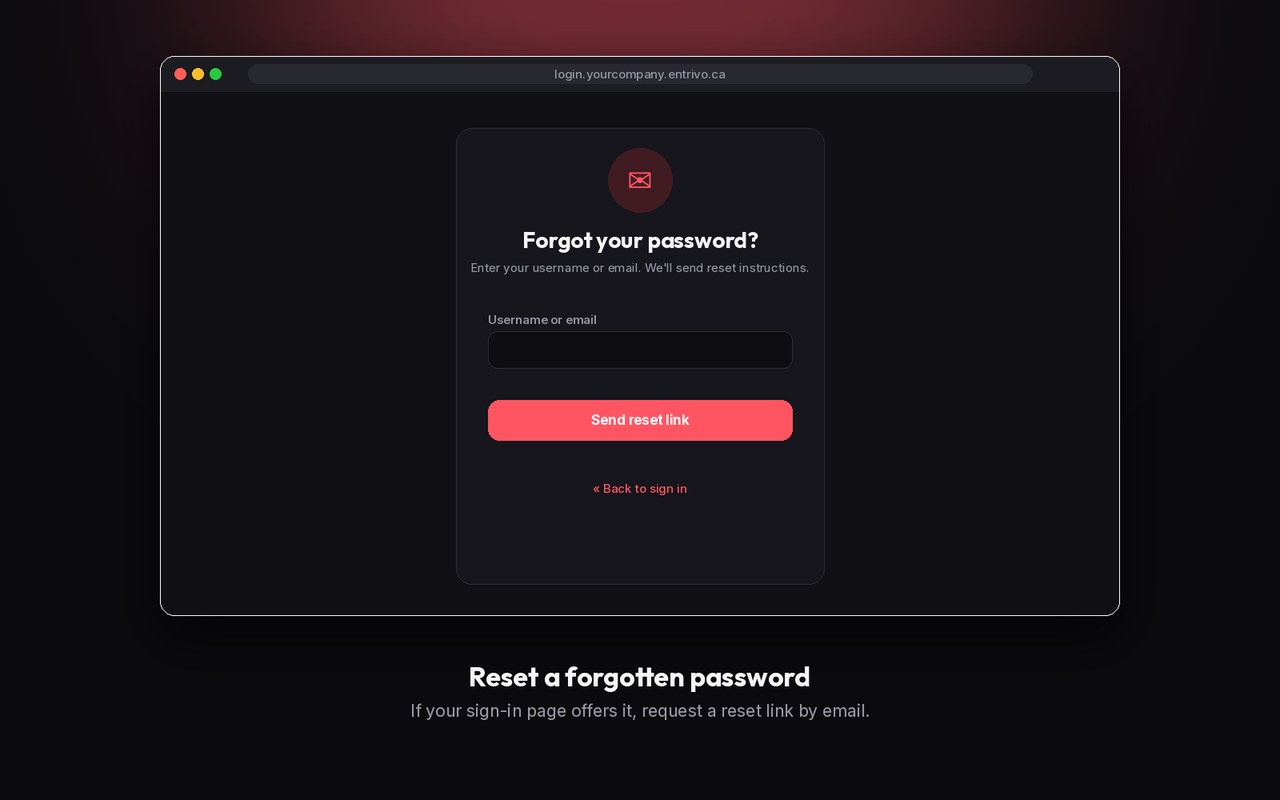
2. Forgot your password?
If your sign-in page shows Forgot password?, click it, enter your username or email and follow the link we email you. If it doesn't, contact your company admin or [email protected] for a reset.
TipReset links expire quickly. Use the newest email if you requested more than one.
Frequently asked questions
What makes a good password?
At least 12 characters, not used anywhere else, and not containing your name or email.
Will I be signed out of my apps?
Only if you tick Sign out from other devices. Otherwise your current sessions continue.
My account is locked.
After repeated failed attempts, Entrivo locks the account for a short time. Wait a few minutes or contact your admin.